

Receiving a truck
Receiving is a full-screen, two-step flow: first what came in, then where it goes. At the end everything is placed in one tap and the walk-in map matches the room.
Where the orders come from
Section titled “Where the orders come from”When your franchise runs PizzaBot HQ, the commissary order confirmations it receives by email become the Next truck cards in the Deliveries panel, with the delivery date and the trays per size, so nobody types an order. The tablet gets them through your PizzaBot account, never from the vendor directly, and refreshes every fifteen minutes. The line at the top of the panel says when it last did, or why it could not (HQ not connected for this franchise, or unreachable). A truck that was already received is never overwritten by a later refresh.
Without HQ, tap + Add in the Deliveries panel, enter the delivery date and the trays per size, and the truck appears the same way.
Step 1: how it came in
Section titled “Step 1: how it came in”Tap Receive on the truck.
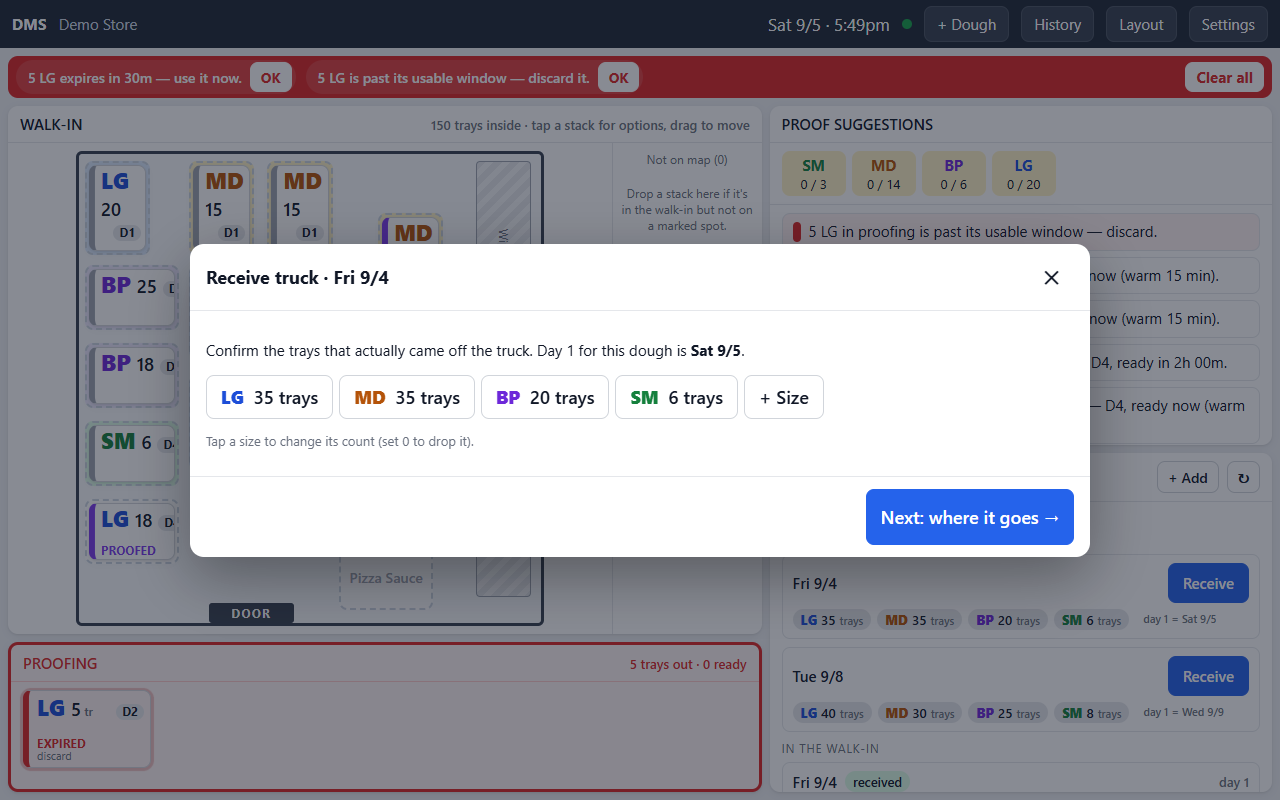
The screen shows the truck as stacks, the way a driver builds them: thirty large shows as twenty-five and five. Each size shows how many trays came against how many were ordered, in red when short.
- Drag one stack onto another to record a mixed stack, and Take apart to undo it.
- Tap the pencil (Counts) to correct a count, split a stack, or add a size that was not on the order.
Tap Next: where it goes.
Step 2: where it goes
Section titled “Step 2: where it goes”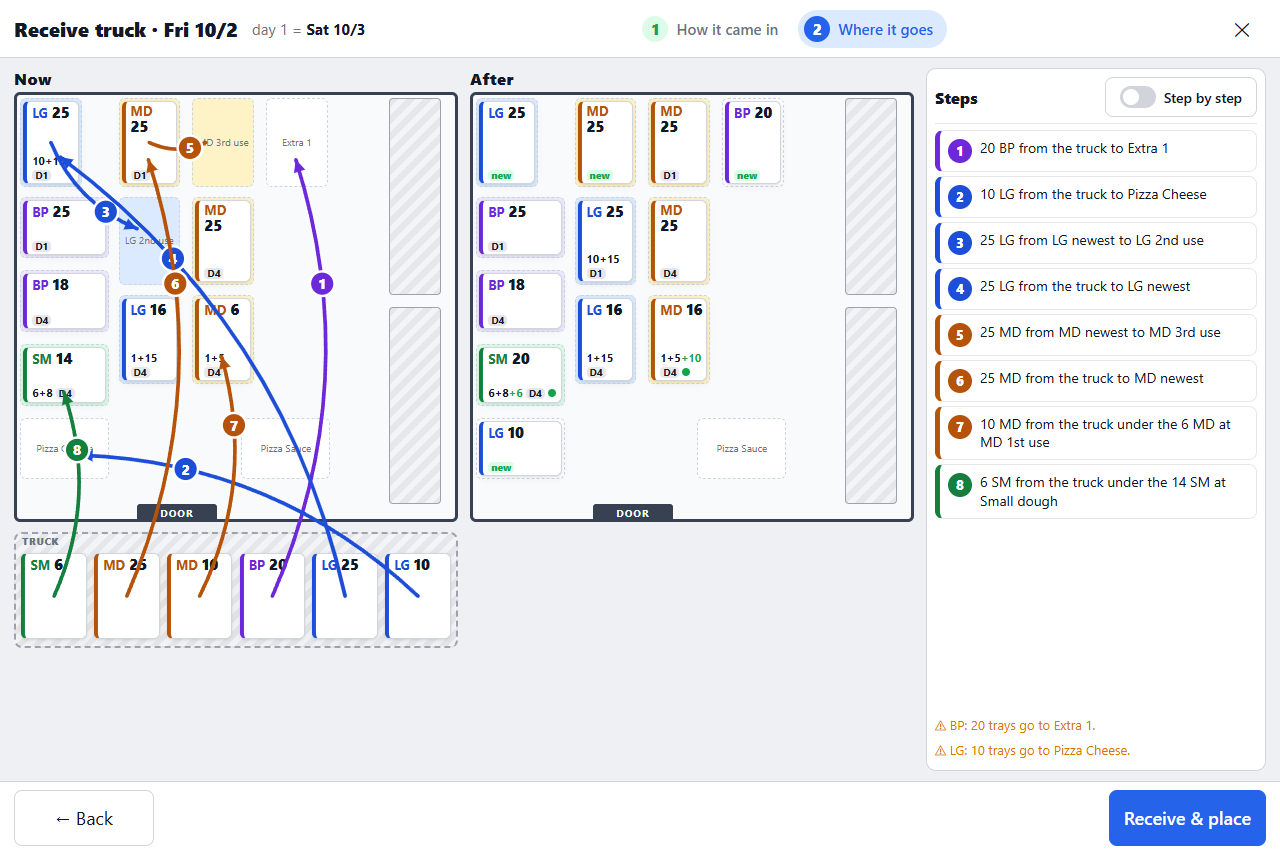
DMS plans the placement and shows it three ways: the walk-in Now, the walk-in After, and a numbered list of steps. Numbered arrows on the Now map match the steps. Tap a step to highlight it. Step by step turns the list into tick boxes for a crew member working through it tray by tray.
The plan follows the store’s rotation:
- Older dough stays nearest the door and new dough goes to the back, so first-use spots keep the right dough.
- A short stack goes under older dough of the same size when the pile stays at twenty-five trays or fewer, so the old dough is still on top. Otherwise it is stacked to thirty and marked to split and proof tomorrow.
- Dough that will not fit the lanes goes to an overflow spot or a dolly, and the plan says so in a warning line.
Tap Receive & place. Every stack is recorded at once and the map updates. If the walk-in changed while the plan was open (someone moved a stack), the plan refreshes rather than placing against a stale room.
Afterwards
Section titled “Afterwards”The truck moves to In the walk-in in the Deliveries panel, where its remaining trays per size count down as the dough is used and the card turns a warning colour as it nears its last day. Day 1 for the new dough is the day after delivery, and the suggestion cards start offering it when its turn comes.