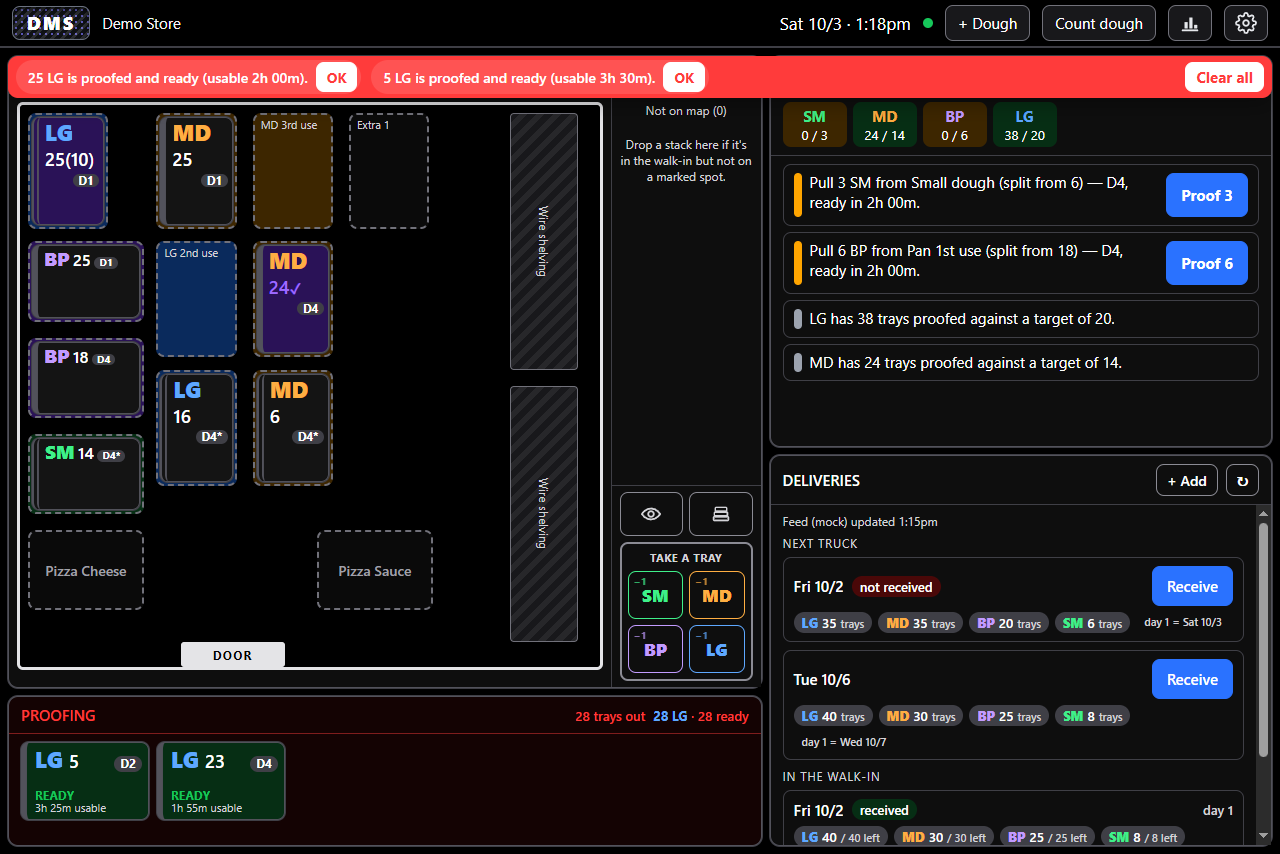
The walk-in screen
The main screen has three parts: the walk-in map and the proofing rack on the left, the tools in the middle, and the suggestions and deliveries on the right. In portrait the same parts stack top to bottom.
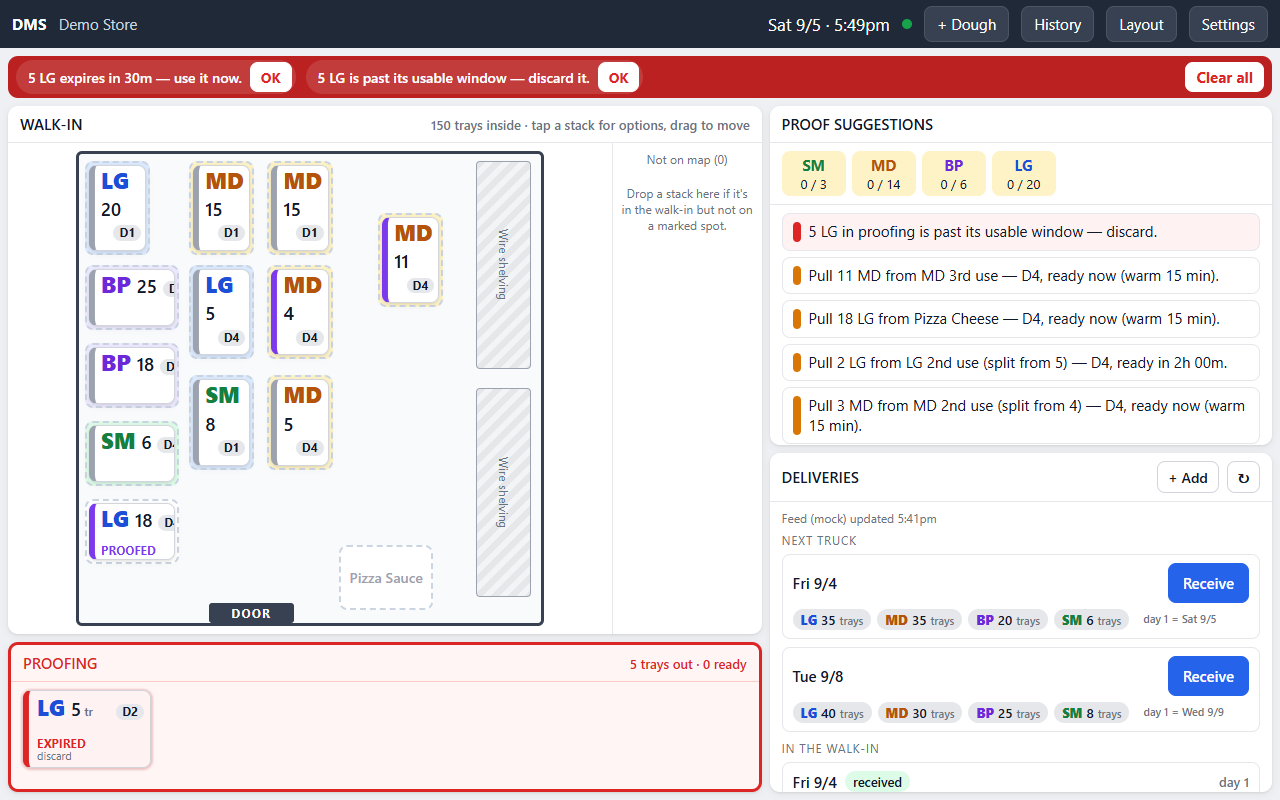
The header
Section titled “The header”The store name, the date and clock, a dot that is green while the tablet is connected to your PizzaBot account, and four buttons: + Dough to add a stack, Count dough for the nightly count (it shows a dot when tonight’s count is due), Usage (the bar chart), and Settings (the gear). A red Wi-Fi sign-in needed appears only when the store Wi-Fi wants a sign-in page and the tablet could not do it alone.
The alarm bar
Section titled “The alarm bar”Alarms float over the top of the screen in a red bar and play a tone. Up to three show at once, each with an OK to acknowledge it, then +N more and Clear all. Urgent ones (expiring, expired, out of date) repeat every twenty seconds until someone taps OK.
| Alarm | When |
|---|---|
| Ready | A proofing stack has finished and is usable |
| Expiring | A stack on the rack is near the end of its usable window |
| Expired | A stack is past its usable window and must be discarded |
| Last day | A stack is on its last dough day |
| Out of date | A stack is past its last day |
The walk-in map
Section titled “The walk-in map”The map is the room as the console drew it: dough spots tinted by the size they hold, the wire shelving, and the door. Spots have names such as LG 1st use (nearest the door, used first) and MD newest (the back). The dollies for cheese and sauce are on the map too, so a stack set down on one can be recorded.
Each stack is a chip:
- The size in its colour: SM, MD, LG, BP, and any extra sizes the store stocks.
- The tray count.
25(10)means 25 trays, 10 of them usable right now. A purple ✓ means the whole stack is proofed. - The day badge, D1 to D6. A
*means the layers in the stack expire on different days. - A status when there is one: READY, WARMING, EXPIRING, EXPIRED, NOT USABLE YET, OVER-PROOFED, PROOFED, LAST DAY, OUT OF DATE, or “Delivered today”, with a sub-line such as “2h to go” or “3h usable”.
A stack can be a pile of layers: ten proofed trays set on fifteen fresh ones is one chip that knows both. The header above the map counts the trays inside by size and how many were used today, and gives a hint for what a tap will do right now.
Not on map, to the right of the map, holds stacks that are in the walk-in but not on a marked spot.
The tools
Section titled “The tools”Under Not on map:
- Details (the eye). Turns on a detail popover for every stack: each layer, its expiry, proof time, and a folded history. It turns itself off after the number of seconds set in the console.
- Stack or swap (the trays icon). Normally a stack dropped on another goes on top. Arm this and the next drop swaps the two stacks instead. It disarms after twenty seconds.
- Take a tray. One −1 button per size. See Working with dough.
The proofing rack
Section titled “The proofing rack”The red panel under the map is the rack. Each chip counts down its proof time, then shows how long it stays usable. The panel head says how many trays are out and how many are ready.
Proof suggestions
Section titled “Proof suggestions”The strip at the top of the right column shows, per size, how many trays are ready or ready soon against the weekday target from the console. Below it are the suggestion cards, each with a one-tap button:
- Pull N from a spot, with when it will be ready, and a Proof N button that moves exactly those trays to the rack.
- Warnings: no dough left, over target, last day, expiring, expired, out of date, not usable until tomorrow (with Put back), over-proofed, a stack taller than its spot allows, or a stack in the wrong lane.
Tapping the text of a card selects that stack with those trays already picked, so you can do something else with them instead.
Deliveries
Section titled “Deliveries”The bottom of the right column lists trucks. Next truck cards show the delivery date, the trays per size, which day will be day 1, and a Receive button. In the walk-in cards track trucks already received, with how many trays of each size are left and a warning colour as the dough nears its last day. The line at the top says where the truck orders come from and when they were last refreshed; + Add enters a truck by hand. See Receiving a truck.
Dark mode and portrait
Section titled “Dark mode and portrait”Settings has a dark theme built for the glare at the walk-in door, plus large text and high contrast switches. Mounted upright, the screen rearranges itself into a portrait layout with the map on top; a rotation lock in Settings keeps it that way.