

Preppy settings
Open Settings with the gear in the header. The tabs are down the left. On a paired tablet, several of them are read-only because the values come from the console, and a manager PIN can protect the rest.
The manager PIN
Section titled “The manager PIN”If a PIN is set for the store in the console, the Labels, Date & Time, Updates, and Connect tabs show a lock. Entering the PIN unlocks them for ten minutes, also when the tablet is offline, and Lock settings locks them again sooner. Printer, appearance, and Wi-Fi stay open without a PIN, so the crew can always fix a printer or join a network. The PIN is set per store on the Settings tab of the console’s Manage Preppy page.
General
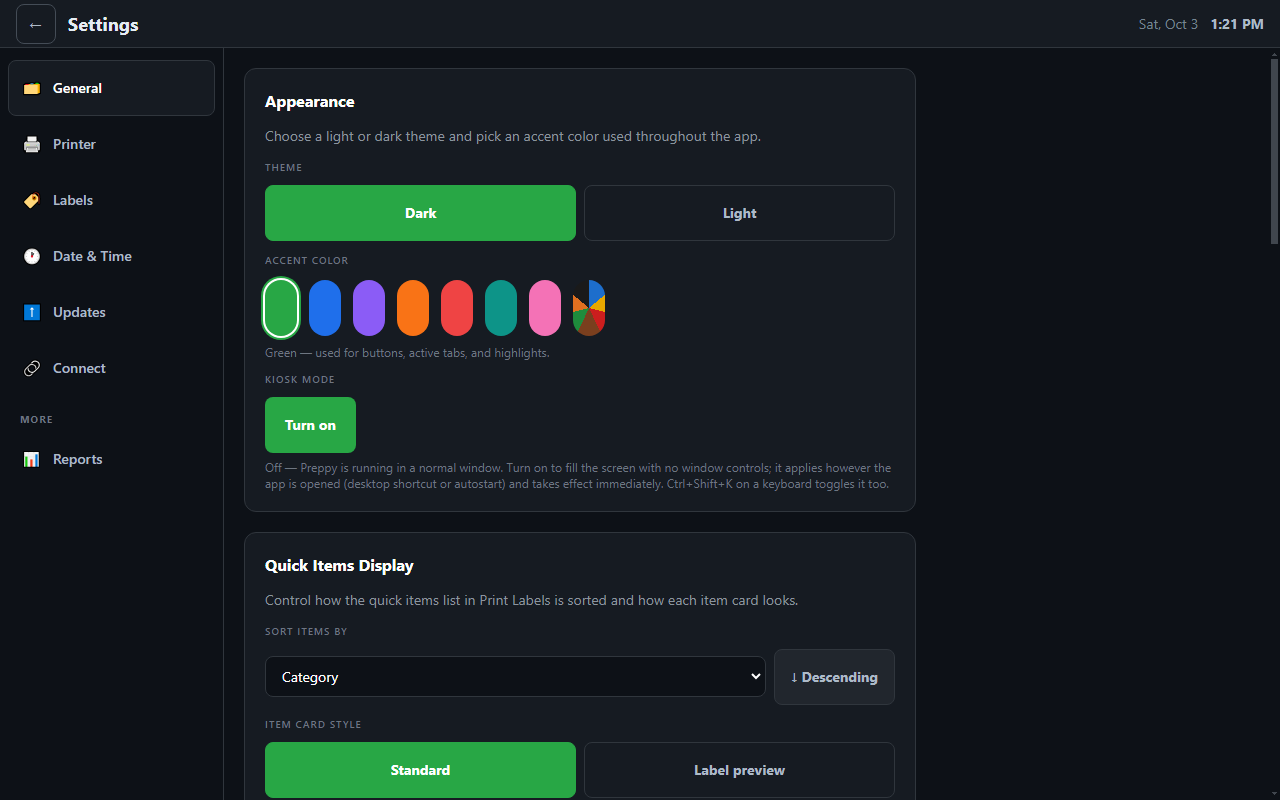
Section titled “General”- Appearance. Dark or light theme and an accent colour. Day of Week as the accent follows the label colour of the day and changes at midnight.
- Kiosk mode. On a dedicated tablet Preppy fills the screen, stays above the Windows taskbar, and cannot be left by touch. With a keyboard, Ctrl+Shift+K switches to a normal window and Ctrl+Shift+Q quits. Tablets set up with PizzaBot Setup manage this themselves.
- Quick items display. Sort items by name, category, recently added, most popular, or recommended, and show each card as a plain button or as a true-to-print label preview.
- Items & presets. On a paired tablet this card lists the item packs the console has sent, with their versions. On an unpaired tablet it offers to import the built-in Shelf Life Guide instead, and to clear all quick items.
- Usage data and layout. Reset the usage history, clear favourites, or reset the panel layout.
- Remote support. Get a support code for an attended session with PizzaBot support. See Getting support.
- Network. Online status, the Wi-Fi name, and whether the store network needs a sign-in page, with a button to open it. Below that, enter Wi-Fi credentials on the on-screen keyboard or scan for networks.
Printer
Section titled “Printer”- Setup checklist: printer configured, test print sent.
- Current device with Scan Devices and Send Test Print. The scan finds the live USB port and prefers the printer’s own Windows queue when one exists.
- Install printer driver & queue sets up the Windows queue that Preppy prints through. It runs on first launch; use it if no printer is detected.
- Detected devices, and a manual device path for unusual setups.
Labels
Section titled “Labels”The tab opens on the alignment controls, because that is what a new printer usually needs.
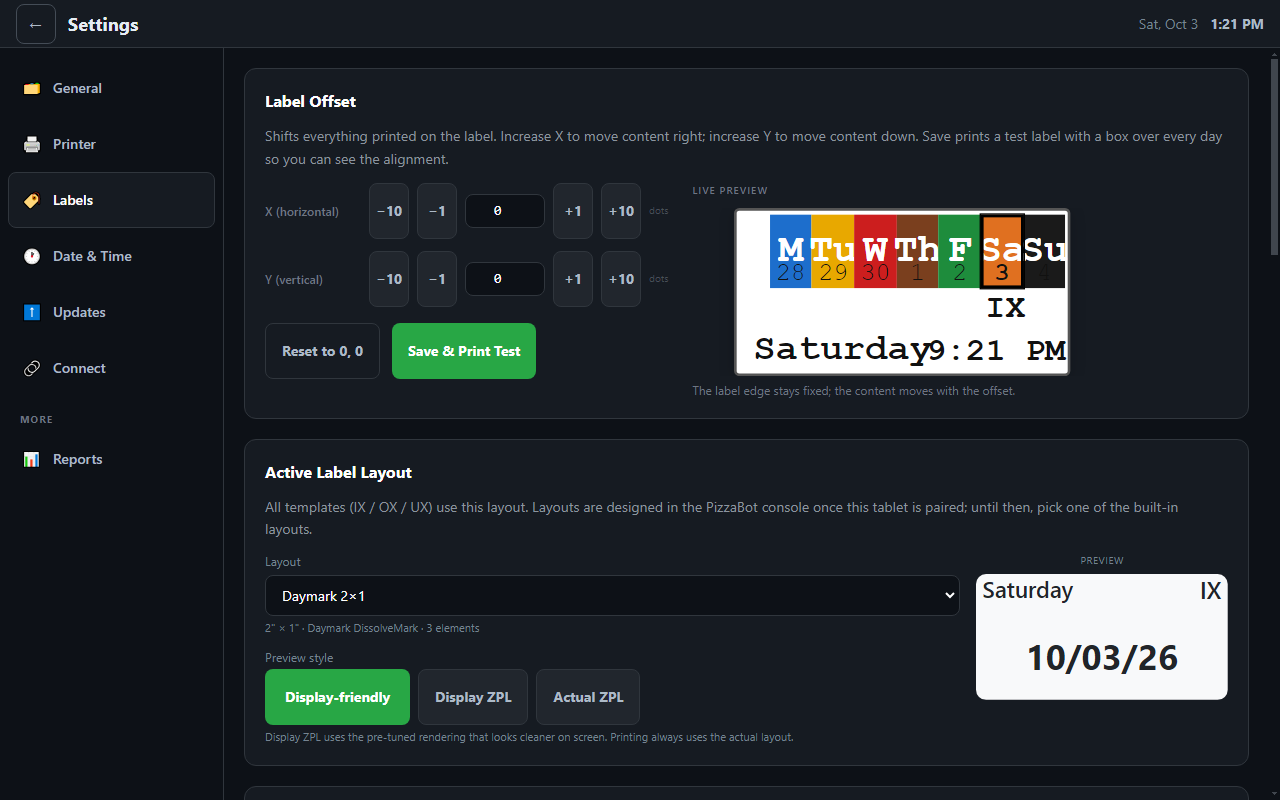
- Label offset. Nudge everything on the label left, right, up, or down in printer dots, with a live preview. Save & Print Test prints a label with a box over every day of the week so you can check that each box sits on its day.
- Active label layout. One layout is used for all three templates. On a paired tablet it comes from the console; otherwise pick one of the built-in layouts, such as DayMark day-of-week stock or blank stock.
- Label date calculation. How Preppy counts shelf life:
- Day-first counting treats today as day one, so a 2 DAY label printed today expires tomorrow.
- Next-day cutoff (8 PM to midnight) is the hour after which labels count from tomorrow, with the header chip described in Using Preppy.
- Same-day rounding rounds hour-based labels to 5, 10, 15, or 30 minutes.
- Use EOD label if a same-day expiry crosses midnight prints the End of Day label instead of a time tomorrow morning. On a paired tablet these are set in the console and shown here read-only.
- Static presets. End of Day is built in. Unpaired tablets can add more.
- Media calibration teaches the printer the label length.
Date & Time
Section titled “Date & Time”A time zone picker, which takes effect immediately, and a button that opens the Windows date and time settings.
Updates
Section titled “Updates”The current version, the release channel the console has chosen for this tablet, and the tablet service version. Check Now looks for an update straight away. On a tablet set up with PizzaBot Setup, updates download in the background and install overnight; Re-apply Tablet Setup repairs the kiosk configuration if it ever drifts.
Connect
Section titled “Connect”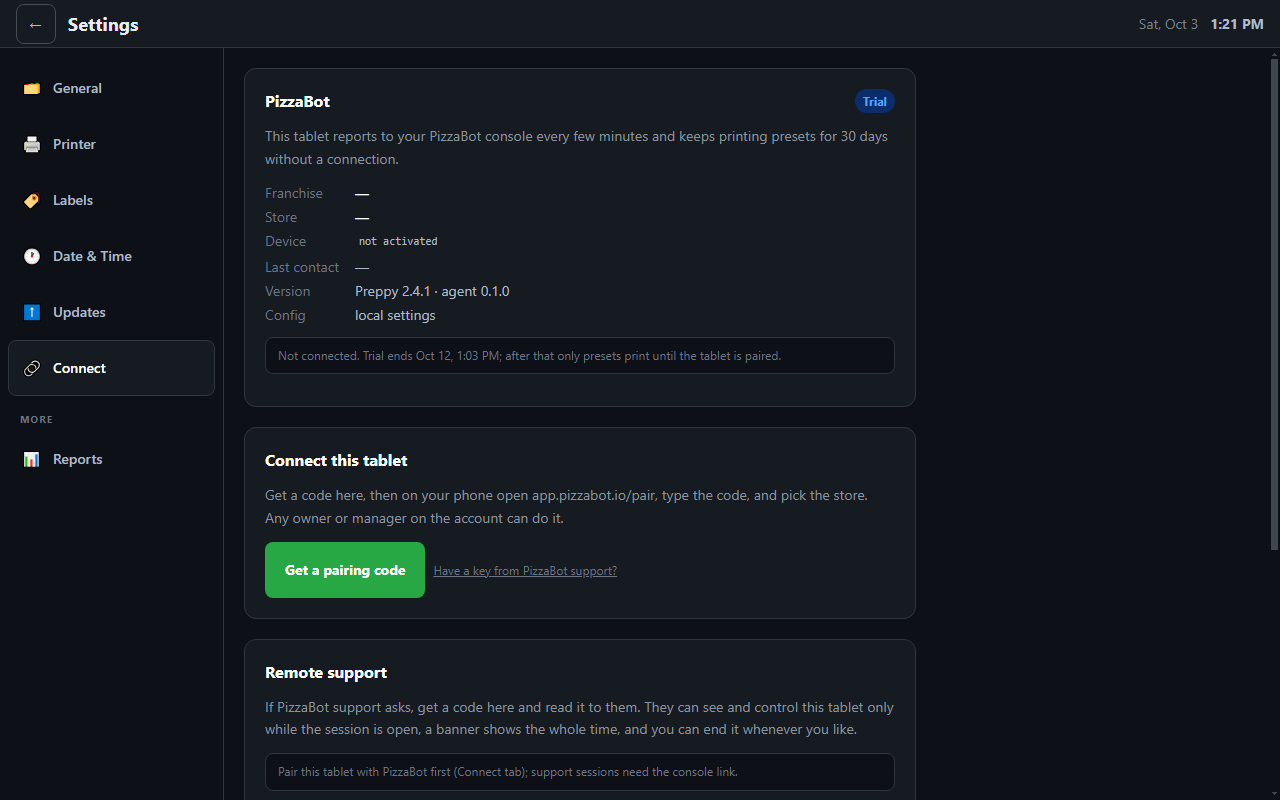
- The PizzaBot card shows the tablet’s state (Trial, Active, Grace, Locked, or Revoked), the franchise and store it belongs to, when it last checked in, the version, and where its content came from.
- Connect this tablet issues a pairing code for a tablet that was not paired by Setup. Get a pairing code, then claim it at app.pizzabot.io/pair as described in Pairing a tablet. A link below it takes a licence key, which PizzaBot support may give you for a kit or a special case.
- The Remote support and Network cards are repeated here.
A tablet that has never been paired runs a thirty-day trial, then prints presets only until it is paired.
Reports
Section titled “Reports”Under More, Reports shows print counts and history, the print log, and system logs, which support may ask about.