

DMS settings and the console
DMS splits its settings in two. Things about this tablet, such as the theme and the alarm volume, are set on the tablet. Things about the store, such as proof targets and the walk-in layout, are set in the console and sent to the tablet, so a replacement tablet starts with the right ones.
On the tablet
Section titled “On the tablet”The gear in the header opens Settings.
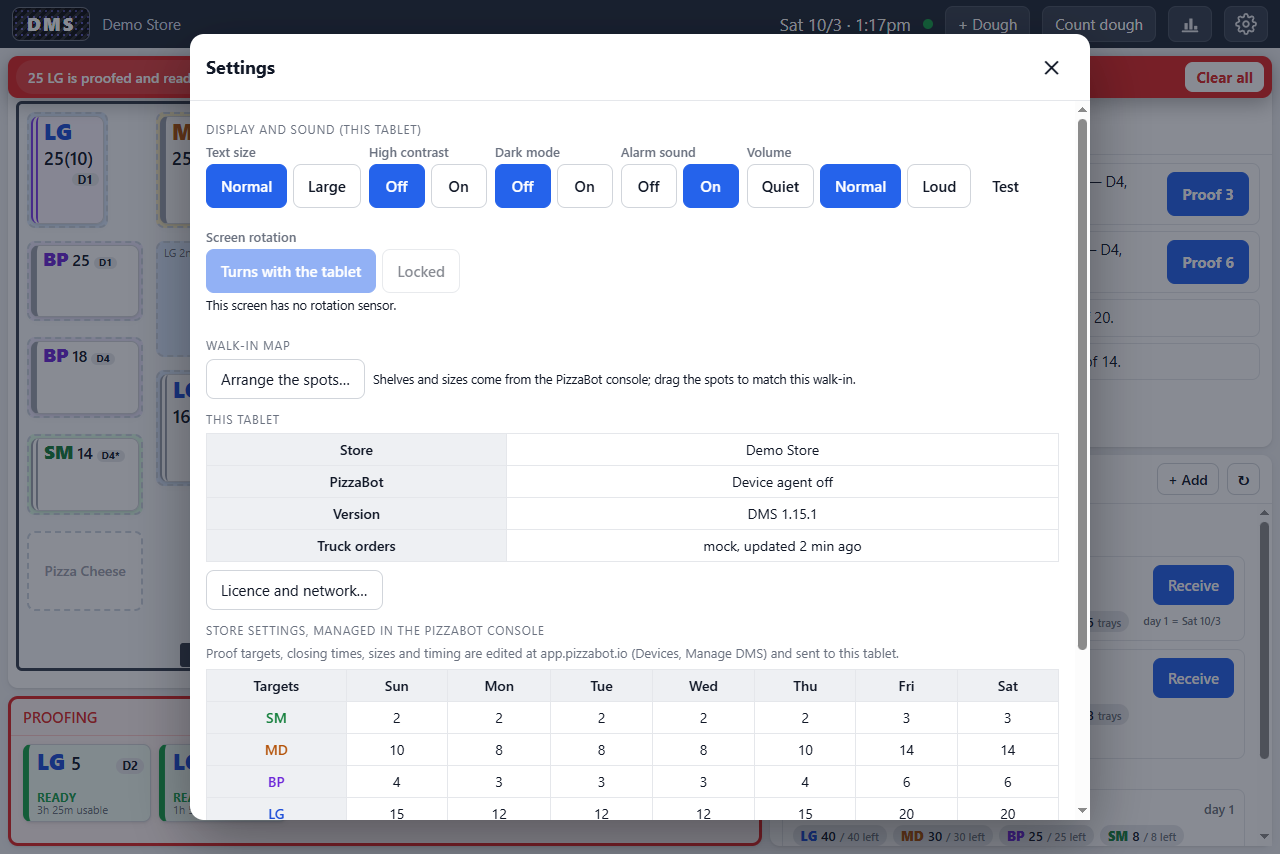
- Display and sound. Text size (normal or large), high contrast, dark mode, the alarm sound on or off, and the volume (quiet, normal, loud) with a Test button.
- Screen rotation. Turns with the tablet or Locked. Lock it once the tablet is mounted so a bump does not flip the screen. It cannot be locked while the tablet is held upright, and a tablet without a rotation sensor shows it as unavailable.
- Walk-in map. On a paired tablet, Arrange the spots… lets you drag, nudge, or rotate the spots to match the real room; the shelves and the sizes come from the console. It sits behind the store’s manager PIN when one is set.
- This tablet. The store, the PizzaBot licence state and last contact, the DMS version, where the truck orders come from and when they last refreshed, and the network. Licence and network… has the support code and the Wi-Fi sign-in page.
- Updates. The update status, what the console has chosen for this tablet, and Check now and apply for an update you do not want to wait overnight for.
- Store settings. Shown read-only with a note that they are managed in the console.
In the console
Section titled “In the console”On the Devices page, tap Manage DMS on the tablet. It works like the Preppy studio: Refresh from tablet, Undo, Redo, Discard, and Review & send. DMS is one tablet per store, so a send always goes to the whole store.
Walk-in layout
Section titled “Walk-in layout”Draw the room the way the crew sees it from the door:
- The room size in trays.
- Dough spots, each with a lane (the size it holds), a rank (1 is nearest the door, used first), a label, how many trays it normally holds, and a maximum. A spot can allow overstack for the thirty-tray piles after a truck.
- Fixtures: wire shelving and the door.
- Extra spots for overflow, and the dollies for cheese and sauce.
Drag the spots into place with the mouse and nudge them with the arrows. A badge shows how many trays are on each spot right now. Removing a spot that has a stack on it moves the stack to Not on map, and the review dialog warns about it before sending.
Store settings
Section titled “Store settings”- Sizes this store stocks. The standard sizes, plus any extras.
- Proof targets per size for each weekday: how many trays should be ready or nearly ready. The suggestion cards work from these.
- Closing time per weekday. The usage day rolls over then.
- Nightly dough count. The store-local time the Count dough sheet opens.
- Timing. How many minutes before the end of its window a stack counts as expiring, how many minutes before it is ready a stack counts as available, how long the warming window is, and how many seconds the Details popovers stay on.
- The store’s manager PIN, shared with Preppy, which gates Arrange and the licence actions on the tablet.
Review & send lists the changes and sends them. A connected tablet applies them within about twenty seconds, and any edit attempted on the tablet for a managed value is refused with a note to use the console.