

Working with dough
Almost everything starts with a tap on a stack. The stack gets a blue ring, the right column becomes its panel, and nothing opens over the map, so the crew can still see the room.
Selecting trays
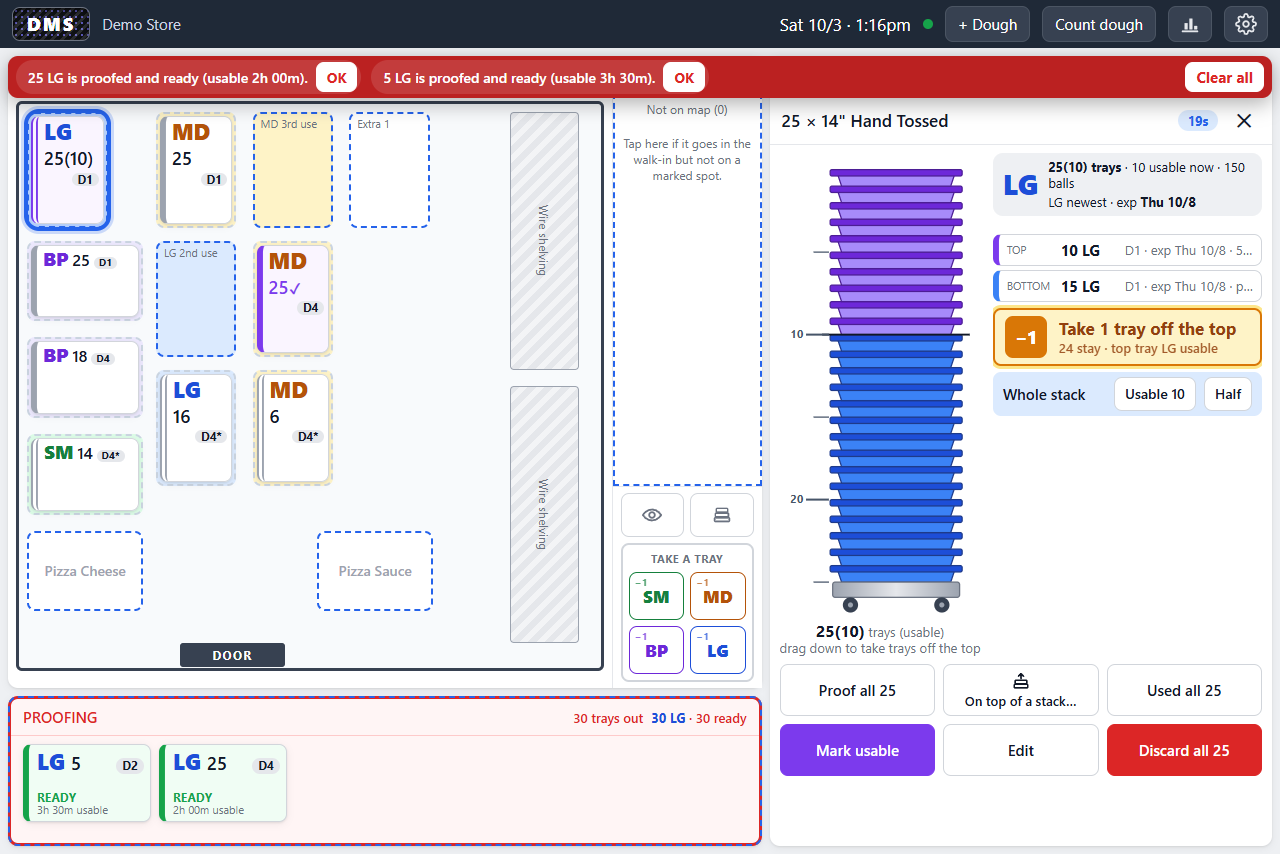
Section titled “Selecting trays”The panel shows the stack as a gauge of trays, tallest at twenty-five. By default the whole stack is selected. To pick part of it:
- Drag down the gauge from the top to take trays off the top; drag past the bottom or the top to select everything again.
- Tap Usable to pick only the trays that are usable now, or Half.
- Tap a layer in the list to select from the top down through it. Tap it again for the whole stack.
The strip under the gauge reads back the choice: “Taking 10 off the top · 15 stay”.
Actions
Section titled “Actions”| Button | What it does |
|---|---|
| Proof N | Moves the selected trays to the proofing rack and starts their clock |
| On top of a stack… | Arms the next tap on another stack to put the selected trays on top of it |
| Used N | Logs the trays as used and removes them |
| Mark usable | For trays that are not usable yet: gives them today’s full proof time, because they were proofed out of sight |
| Split off N | Makes the selected trays their own stack, shown only when part of the stack is selected |
| Edit | Corrects the tray count, the dough date, the size, or the proof time |
| Discard N | Removes the trays after a confirmation; this cannot be undone |
The panel also shows up to two suggestion cards about this stack, with their own buttons.
Moving a stack
Section titled “Moving a stack”With a stack selected, tap where it goes: an empty spot, the proofing rack, or Not on map. Dragging still works, and a selected stack drags as soon as the finger moves. The stack stays selected where it lands, so a second move is one more tap.
Stacks are capped at thirty trays. If a move or stack-on-top would go over, the overflow goes into a short place mode: a banner says “tap where the other N go”.
The selection clears after twenty seconds without a touch, on the ✕, or on a tap on the floor away from any spot.
Take a tray
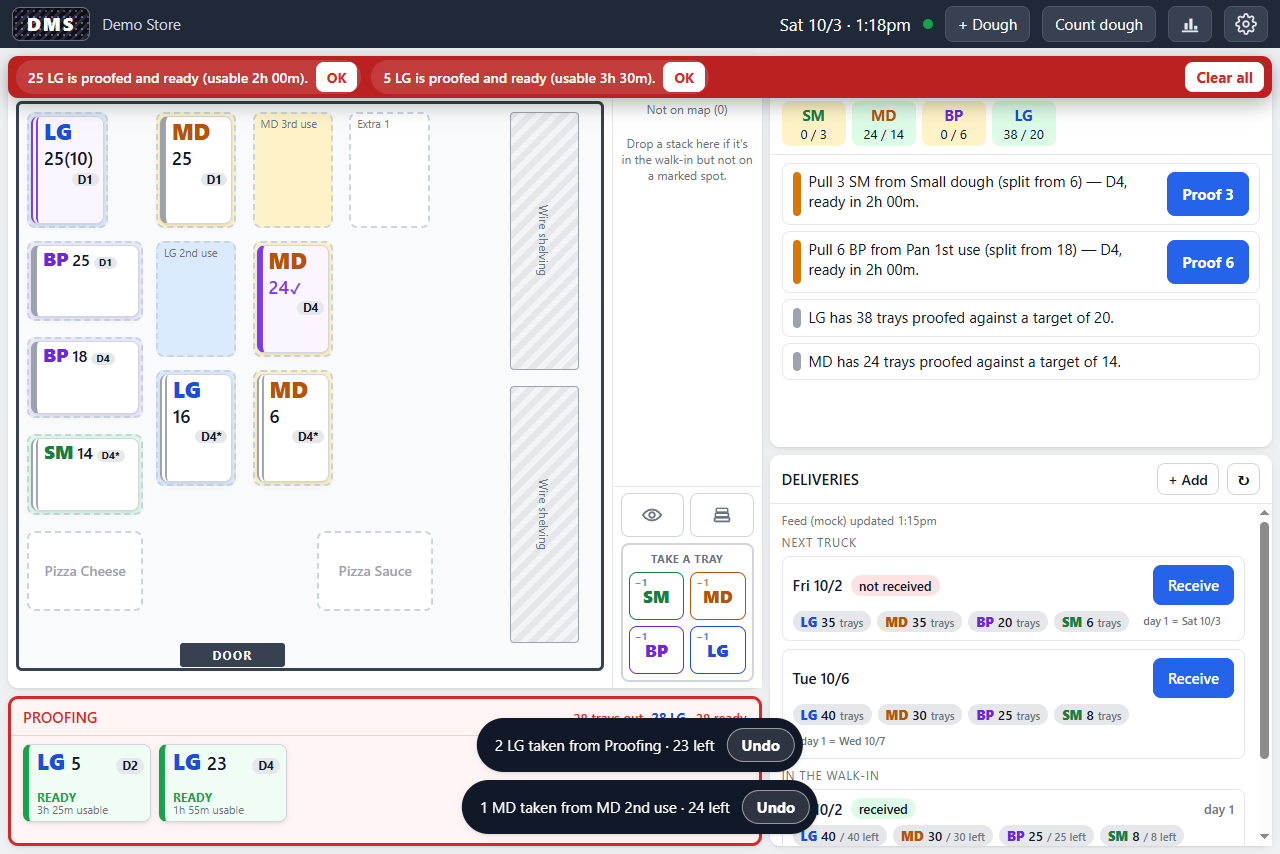
Section titled “Take a tray”Every tray that goes to the line is one press of the −1 button for its size, in the tools column. DMS takes it from the stack in use: the rack first, then the oldest usable top tray in the walk-in. A toast says which stack it came from, with Undo for six seconds, and repeated presses add up in the same toast. The selected-stack panel has the same button for that stack, and a stack dropped onto the buttons takes one tray from it.
Adding dough
Section titled “Adding dough”Tap an empty spot to select it. The column lists every stack as a card; tap one to move that whole stack into the spot. At the top, + Add dough here opens the form for dough that is not in DMS yet, for example on the day the tablet goes up:
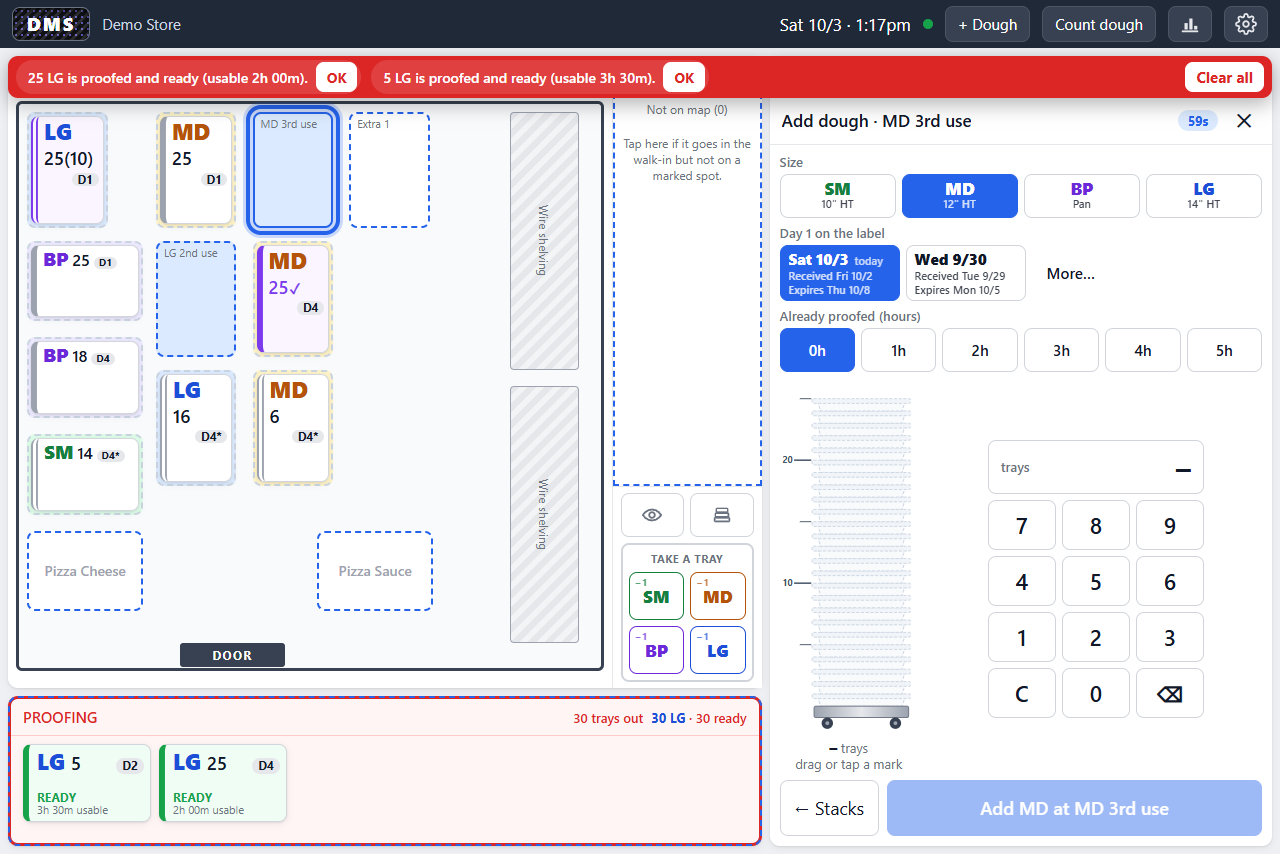
- Pick the size.
- Pick day 1 on the label: today, the recent truck dates, or any date under More.
- If the dough has already proofed, set the hours.
- Enter the tray count with the number pad or by dragging the gauge.
- Tap Add. The button names the destination; tap a different spot, the rack, or Not on map first to change it.
+ Dough in the header opens the same form with no destination: fill it in, tap where it goes, then Add. The list closes after twenty seconds without a touch and the form after sixty.
Alarms during the day
Section titled “Alarms during the day”Acknowledging an alarm with OK removes it from the bar; the stack keeps its status until the crew acts on it. A stack that is past its window keeps a Discard card in the suggestions until it is discarded, and Count dough at night will also show it.