

Getting started with Preppy
Preppy is a touch kiosk that prints prep and expiry labels on a Zebra thermal label printer. Pick a hold time or a quick item, tap, and the label comes out with the right day and date on it. This page takes a new store from an empty tablet to the first label. The other Preppy pages cover the screen, Settings, and managing Preppy from the console.
What you need
Section titled “What you need”- A Windows 11 tablet, ten inches or larger with a 1280 by 800 screen or better, or a PizzaBot kiosk kit. The hardware guide lists what works.
- A Zebra direct thermal label printer with the store’s label stock. Most stores already own one.
- The store’s private Wi-Fi name and password.
- A PizzaBot account with the store added and Preppy turned on for it. See Stores and products.
Preppy prints without an internet connection. Wi-Fi is for updates, content sent from the console, and support.
Set up the tablet
Section titled “Set up the tablet”- On the tablet, follow the install page to download and run PizzaBot Setup. Leave Preppy ticked. Setup makes the tablet a dedicated kiosk that turns on straight into Preppy and never sleeps.
- When Setup shows a six-character code, pair the tablet from your phone at app.pizzabot.io/pair. Pick the store, and the tablet downloads Preppy by itself.
- Let Setup restart the tablet. It signs itself in and opens Preppy, already connected to your store.
- Plug in the Zebra printer by USB and turn it on. Preppy finds it and prints a test label. If nothing prints within a minute, open Settings → Printer and tap Scan Devices.
A tablet ordered from PizzaBot arrives with steps 1 to 3 done.
The first label
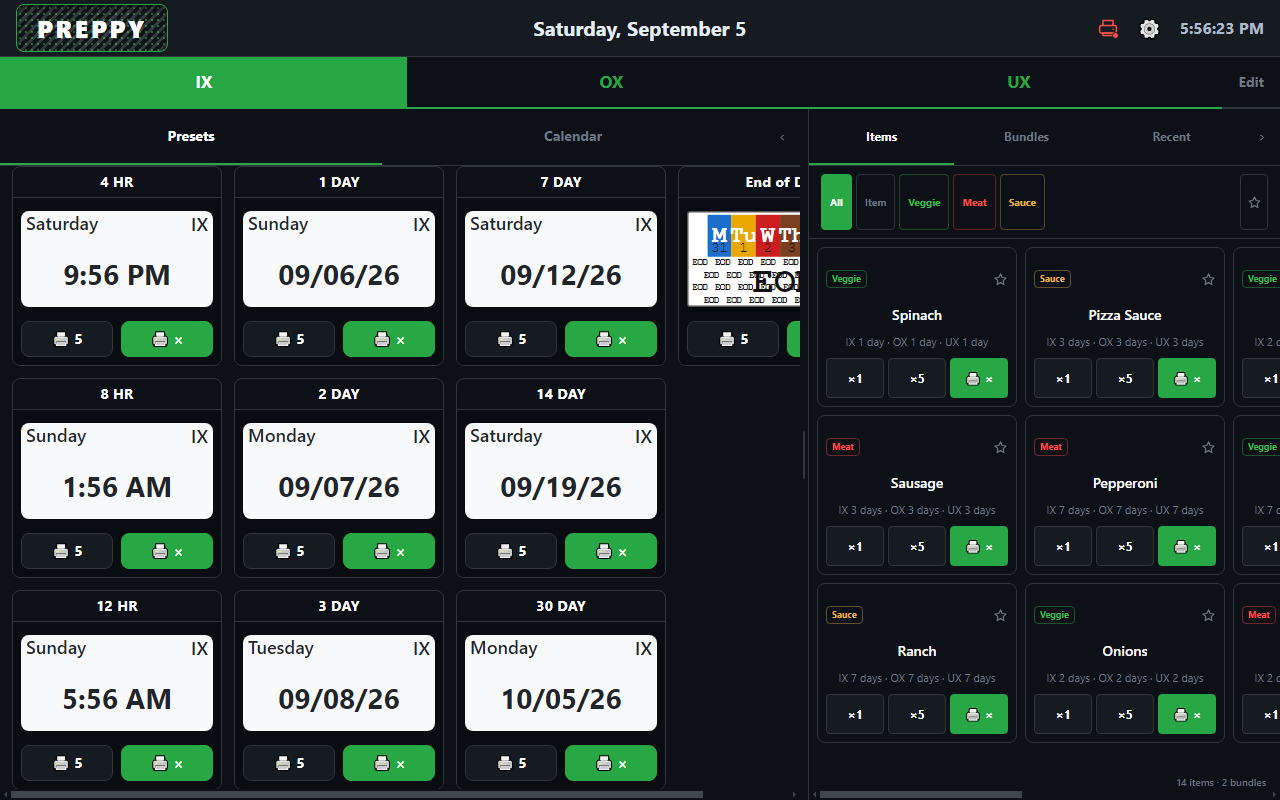
Section titled “The first label”- The top bar picks the template: IX (in use), OX (opened or prepped), or UX (unopened, received).
- Tap a preset card, for example 2 DAY. The card already shows the label it will print, with the weekday and date worked out.
- One tap on the preview prints one label. 🖨 5 prints five. 🖨 × asks how many.
Quick items on the right print the same way: tap ×1 or ×5 next to the item.
Where the content comes from
Section titled “Where the content comes from”On a paired tablet the presets, quick items, categories, bundles, label layout, and date rules are all managed in the console and sent to the tablet. Open the Devices page, find the tablet, and tap Manage Preppy. Changes arrive within a few seconds. The crew can still add or reorder things on the tablet in Edit mode, but the next send from the console replaces those edits, so make the lasting changes in the console. Managing Preppy from the console walks through it.
The console’s Packs page has the Shelf Life Guide pack, a ready-made set of quick items with the standard shelf lives. Sending it to a new tablet gives the crew a full item list on day one.
Updates
Section titled “Updates”Preppy updates itself overnight. The tablet’s service downloads a new version in the background and installs it between 2 and 5 in the morning, so nobody has to do anything. The version each tablet is running shows on the Devices page.